It can happen, on some computers, that the system takes a long time to turn off. In this article, I describe a couple of procedures to try to quickly shut down Windows 10. It happened to me on a rather powerful workstation, with many GB of RAM, and I solved by applying the methods described below.


Before trying the two procedures that I will describe shortly in this article, I recommend verifying that the system is healthy!
The two commands to use to verify that the system is healthy are as follows and must be started by the command prompt, run with administrator privileges.
To check your hard drive:
chkdsk c: /f
To check windows 10 system files:

sfc /scannow
If the system is already healthy and there are no applications or services that prevent windows from shutting down properly, in this case it is good to try these two tips to quickly turn off Windows 10.
Quickly shut down Windows 10, settings in control panel
By default, Windows 10 is configured to activate a hibernation procedure, instead of shutting down. This makes Windows startup faster.
When Windows 10 shuts down, a file with system state information is created. Then, when you turn on the computer, Windows reloads the kernel, drivers, and session from the hibernation file, instead of starting by loading all files from scratch.
If you want to speed up Windows 10 shutdown, albeit at the expense of startup speed, you can disable fast startup.

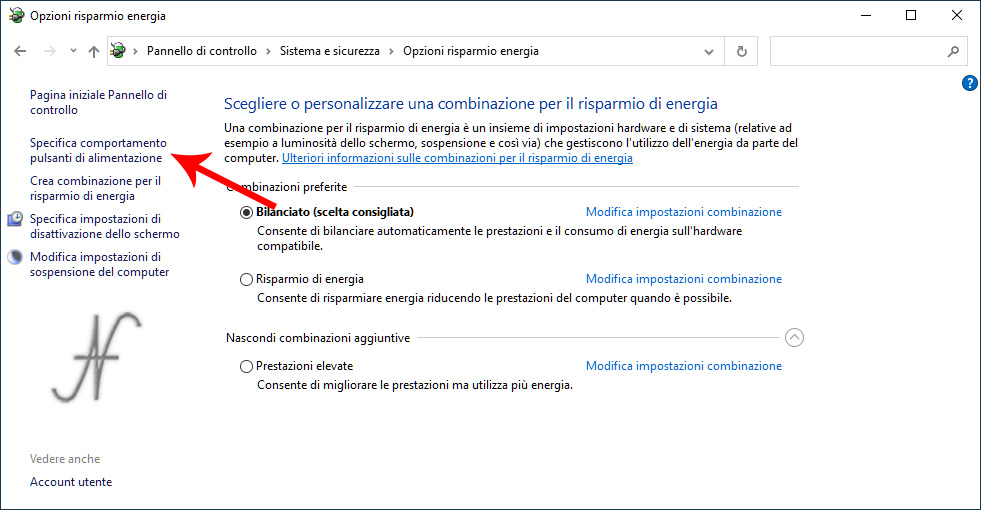
From the Control Panel, System & Security, Power Options, click on the left, on Specifies power button behavior.
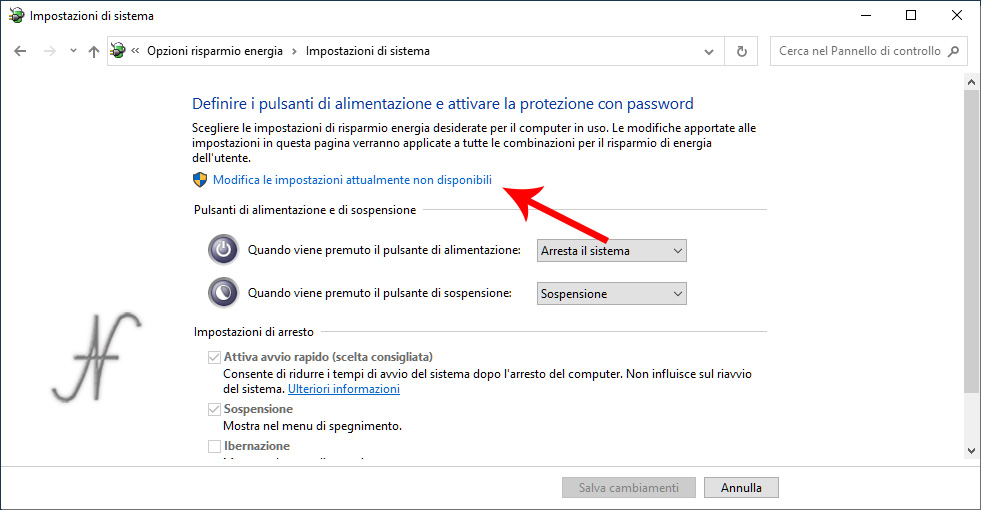
You must then proceed to change the shutdown settings. To enable the ability to change these settings, click Change settings that are currently unavailable.
Finally, uncheck from Enable quick start (recommended). Then save the changes.
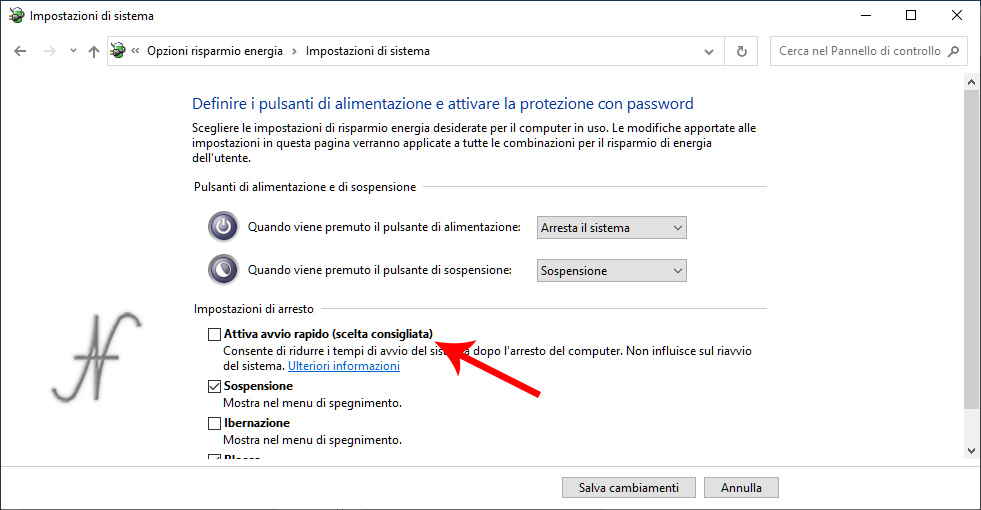
Already with this setting, the system will turn off much faster, but, as already specified, at the expense of the turn-on speed. Obviously the operation is reversible, so it is always possible to reactivate fast startup, if you prefer the system to start quickly, at the expense of a slower shutdown.
Another setting to check in the registry
Reading various blogs, I happened to find people who suggest reducing the App closing timeout when shutting down Windows. I don't really agree with these suggestions: in my opinion it is better to close the Apps before turning off the system. If, unfortunately, some applications remain open, it is best to give them time to close safely.
I found this setting, however, rather useful, which allows you to quickly shut down Windows 10, preventing it from clearing and overwriting the virtual memory paging file.
If this option is enabled, Windows clears and overwrites the paging file, to improve the privacy of the computer.
By disabling this option, the system is able to shut down faster.
Start Registry Editor, with the command regedit.
Find the key:
HKEY_LOCAL_MACHINE\SYSTEM\CurrentControlSet\Control\Session Manager\Memory Management
Then set the value to 0:
ClearPageFileAtShutdown
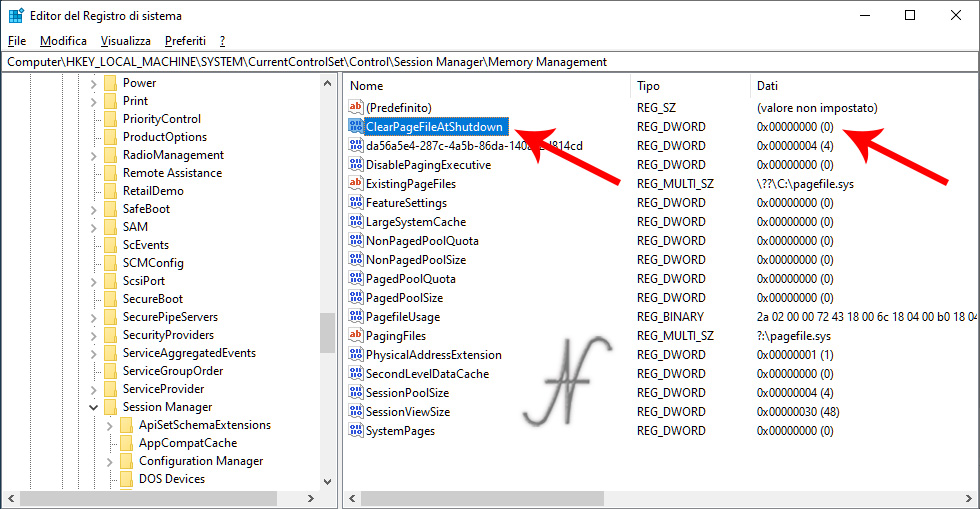
However, it is possible that the option ClearPageFileAtShutdown Property is already set to 0 on the computer.
If, with the two procedures described above, the computer is still slow to shut down, I recommend taking a look at the active services and processes. It is possible that some process or service is blocked and does not allow the computer to be turned off quickly.
Related articles:
FastLynx to transfer files between old and new PCs
Remove unused devices, clean Windows 10 drivers

Tutorial: how to build a XUM1541

Windows 10 storage spaces, performance and simulation of a failure

Windows 10 Storage Spaces Elimination, Virtual Drive Experiments
Uninstalling Windows 10 default apps
Useful Windows 10 Tricks, Tips and Tricks # 1

Connecting a Commodore MPS803 dot matrix printer to a Windows PC in 2021?
How to take a Screenshot on PC, Windows

How to create a VPN server and connect to your home LAN

Connect Commodore 1541 floppy disk drive to Windows 10 PC: OpenCBM, CBMXfer, XUM1541
Windows 10 Shortcuts, Tips and Tricks # 2
Permanent removal of pre-installed Windows 10 apps

Windows 10 Storage Spaces, mirroring to protect data
Migliorare la Privacy: cancellare le tracce d'uso del PC

Simple Windows 10 Storage Spaces
Install Windows 10 on old PCs
Thanks for the advice on this page, so far none of those I have viewed and contacted knew how to solve it. Now I have w10 as at the beginning new and fast.
Big! I'm glad!